 Homebase Hub
Your site, on your home screen.
Add Homebase Hub to a phone or computer and it opens like an app, with its own icon and no browser bars. Your data still comes from your server every time.
- 1Open your site in Safari.
- 2Tap Share (the square with an arrow).
- 3Choose Add to Home Screen, then Add.
- 1Open your site in Chrome.
- 2Open the menu (the three dots).
- 3Choose Install App, or Add to Home Screen.
- 1Open your site in Chrome or Edge.
- 2Click the install icon at the right end of the address bar, or open the menu and choose Install.
- 3The site opens in its own window and can be pinned like any app.
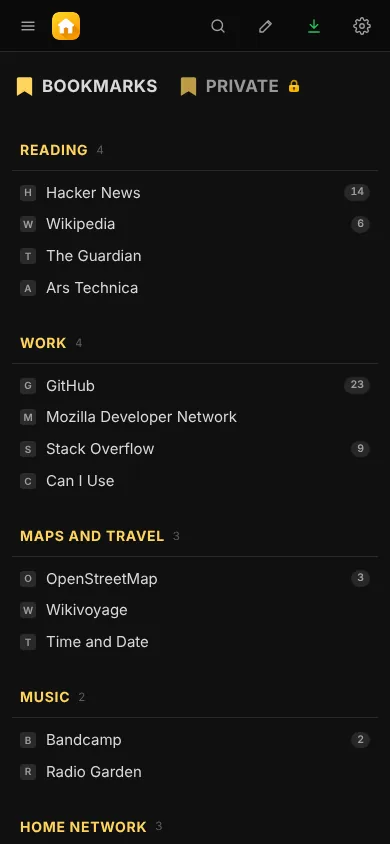
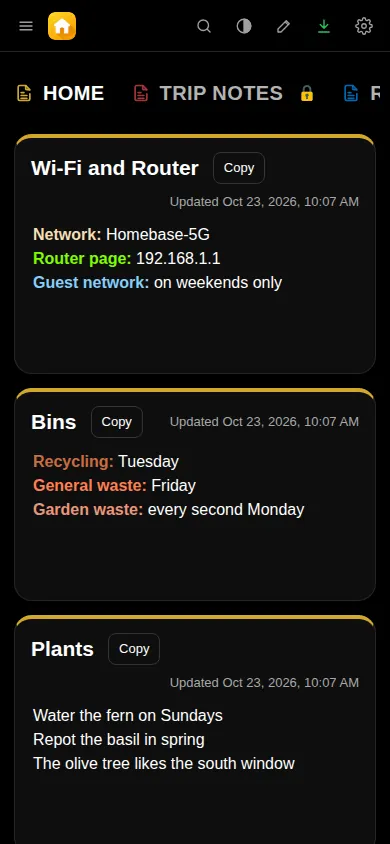
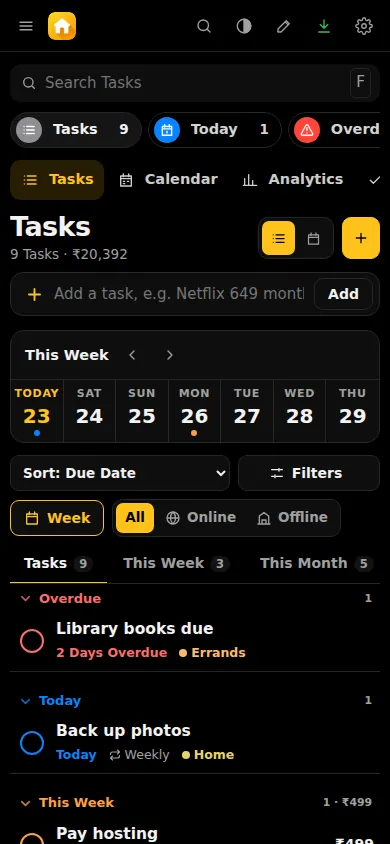
Like an app, still your site.
Its own icon
The site sits on your home screen with the Homebase Hub icon, or your site name.
No browser bars
It opens in its own window, like an app.
Shortcuts
Press and hold the icon, where your phone allows it, to jump to Links, Info, Cards, Tasks or Tools.
Nothing kept offline
Your data always comes from your server, and stays there.
Swipe between pages
Swipe left or right to go to the next or previous page, in the order of your bar. On Home, pull down for the next photo.
Always current
After an update the app shows the new version by itself. Only the icon on an iPhone changes after removing and adding it again.
The same steps are in Settings, General, Install on Your Phone, where an Install button also appears when your browser offers one. It works in a sub-folder too.
Up and running in three steps.
No database and no command line. A file manager is enough.
- 1Download the zip
- 2Upload and extract it on your hosting
- 3Open your domain and choose a password